You can code from your phone by steering Claude Code or Codex through Aiola while your desktop runs the agents. You write the request, answer approvals, review changes, and open a pull request without typing the code yourself. The phone connects directly to your running desktop over LAN or Tailscale.
How do you connect before leaving your desk?
Install Aiola Desktop on your Mac or Windows PC, where your repositories and authenticated provider CLIs live. Set up Claude Code or Codex there with your own provider subscription. Aiola uses those subscriptions without token markup.
Get Aiola for iPhone and iPad or Aiola for Android for your device. Sign in with the same Aiola account on the phone and desktop before pairing.
- On desktop, open Central Settings, then Connections.
- Enable Allow LAN connections and wait for the connection URLs to appear.
- On Windows, allow Aiola on private networks when Windows Firewall asks.
- Under Devices, select Add and keep the QR dialog open.
- Open the phone app's QR scanner and scan the code.
Use LAN when both devices can reach each other on the local network. For access away from that network, sign both devices into the same Tailscale tailnet. Tailscale provides the encrypted route; LAN transport is not encrypted.
The phone tries the addresses supplied by the desktop, preferring Tailscale when available. Aiola uses no cloud relay for this connection. Prompts still go to your chosen provider.
Open an existing thread before you leave and confirm you can read it. Keep the desktop on and awake throughout the session. The phone connection guide covers rejected codes, missing URLs, and device access removal.
How do you start Claude Code or Codex remotely?
Open a new thread and choose the project that owns the code. Use the model menu to select Claude Code or Codex, then choose an available model. Choose the permission mode and worktree option where supported.
Pick the provider before sending the first message. Once a thread starts, its provider stays fixed. Start another thread if you want the other provider to handle separate work.
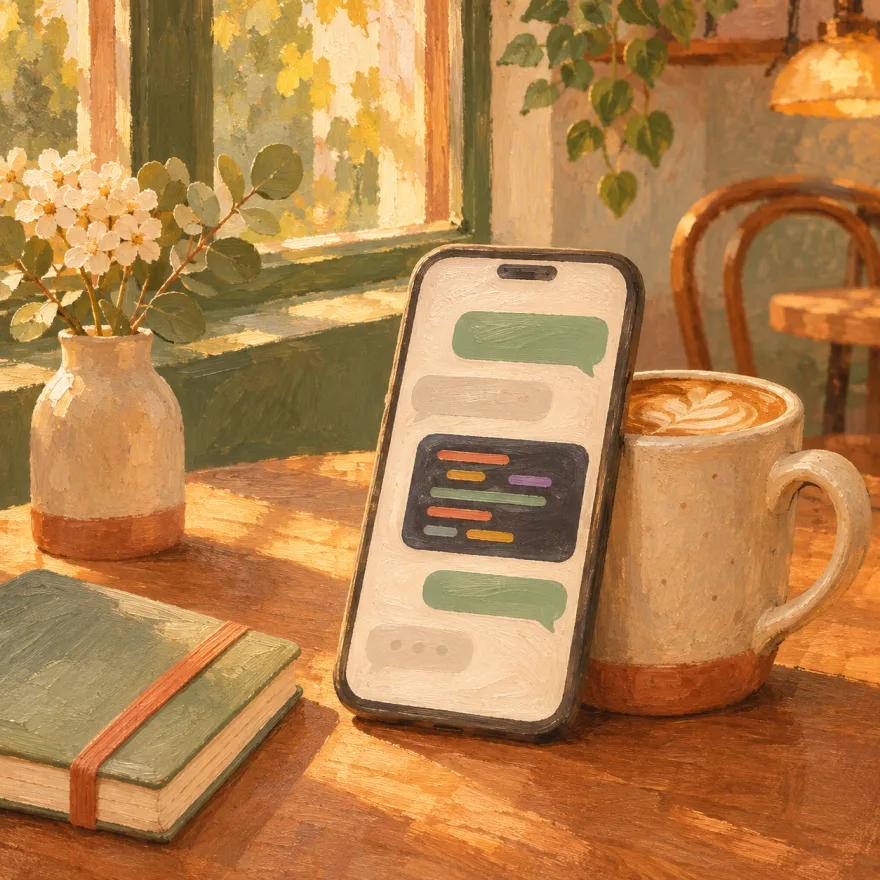
Describe one change with a clear way to check it. For example, imagine you notice a checkout button wrapping badly while sitting in a cafe. You could send this request:
Inspect the checkout button layout on narrow screens. Fix the wrapping without changing checkout behavior. Run the relevant checks and summarize the diff.
Dictate the request if typing is awkward. Attach a screenshot or photo when the selected model supports images. Include what you expected and what you saw, so the agent has evidence beyond a vague request.
You can run several agents and follow their threads from the phone. Keep each request clear about its project and scope. Check usage limits and reported reset times before starting more work.
What does an away-from-desk review look like?
Let the agent inspect the project and propose its change. When it requests approval, read the command or file change before answering. Approve once, approve for the session where offered, or reject the request. Answer any questions about the intended behavior in the thread.
Push notifications can tell you when work needs attention or finishes. On iPhone, Live Activities can show agent progress. These alerts help you return to the thread; read the actual result before deciding what comes next.
When the agent finishes, open the changed files and read the diff file by file. For the checkout example, check that the edit concerns layout and leaves payment behavior alone. Ask a follow-up question if the diff includes something you did not request.
Use the remote terminal when you need to run a command yourself. It runs on your computer, alongside the project and its tools. Run the project's relevant check command and read its output. A finished agent message does not replace that check.
Stage the files you intend to include, then commit with a message describing the change. The mobile Git controls support commit and push as well as a combined action. Confirm the branch before pushing, then open a pull request with a title and description.
Review the pull request as another decision, rather than treating creation as proof the change is ready. If the diff needs more attention, leave the work for a larger screen. The mobile monitoring workflow covers keeping agent work moving while you are away.
What changes on tablets, and what stays on desktop?
The phone and tablet app uses a split layout on supported larger screens. On iPad, an open iPhone Duo, Android tablets, and unfolded foldables, threads sit left and the open chat sits right. Folded devices use one screen at a time.
That layout gives you room to move between threads while reading a conversation. It remains a remote connection to the desktop running your agents. A tablet does not remove the need to keep that computer awake and reachable.
Aiola is one app to build, run, and support your products. On desktop, agents can read production errors, feedback, analytics, GitHub records, and tasks for each project. That context helps a request start from the evidence instead of copied fragments.
The mobile app does not include Analytics, App Logs, the Feedback inbox, Tasks, Notebook, GitHub pages, Automations, or Calendar. Mobile Git actions still let you review changes and create pull requests. Plan desktop work around those limits before heading out.
Try it in Aiola
Give your coding agent a focused request, then steer its desktop work from your phone. Download Aiola, pair your devices, and take one small change through review and checks. Keep your desktop awake while you work remotely.