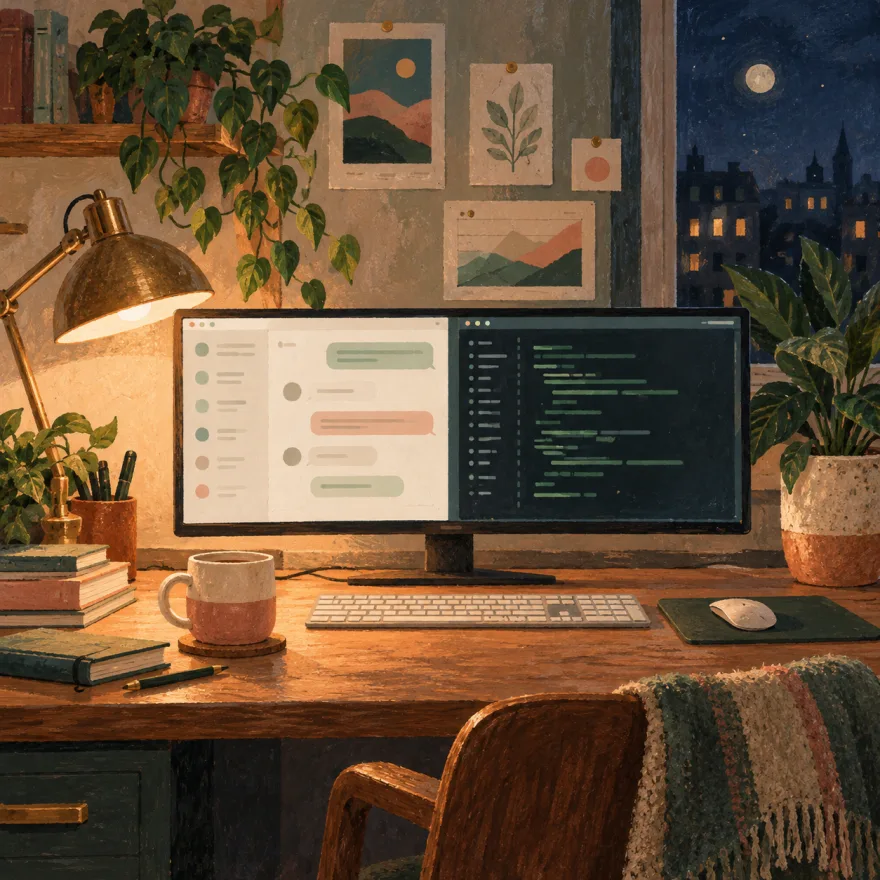
Aiola keeps terminal and reference surfaces in persistent Split and Canvas layouts. A terminal card holds a shell session, while a chat card holds the conversation. Arrange them together when a coding task needs both a prompt and command output.
Why keep the shell beside the thread?
Use a terminal for the commands you run alongside a coding conversation. For example, keep a development server in one shell and run tests in another. These are commands you choose and start in the shell.
The dashboard also has a panel strip with Terminal, Review, Files, and multiple browser tabs. That panel can expand, collapse, or appear fullscreen beside chat. Use the chat documentation to distinguish these dashboard panels from the terminal layouts.
For keyboard access, the command palette defaults to Command+K on macOS and Ctrl+K on Windows. Terminal and browser creation use configurable shortcuts. Check their current assignments before using a shortcut from an example.
What does split view let you arrange?
Split mode stores panes in a horizontal or vertical tree. Add a pane for another shell, then resize the panes around the output you need. You can swap panes or move them within the arrangement.
Browser and terminal tabs can change order inside a pane. They can also move between panes. Put related tabs together when the same task needs a shell and a browser.
Use separate terminal panes for commands whose output you want to compare. For a server and test run, give each command its own pane. Resize the server pane when an error needs more reading space.
What should stay on screen during a task?
For a web change, start your development server in a terminal pane. Run the project's test command in a second pane after the agent's edit. If you need a local log stream, run its command in another shell.
Keep the test output beside the conversation when writing your next prompt. Include the failing test name and relevant output in that message. This connects the next instruction to the command you actually ran.
Use the terminal controls through Keybinds when you prefer keyboard access. Open Central Settings → Keybinds, or choose Keyboard shortcuts from the Help menu.
Select an action's shortcut, or choose Set shortcut, to record a replacement. If that combination already belongs to another action, change or clear the conflicting assignment before saving.
How do you preview the app you are running?
The dashboard supports multiple browser tabs beside chat. Tabs can be reordered or closed as the task changes. Use one for the page you are checking alongside the server's terminal output.
The default Open browser shortcut is Command+T on macOS and Ctrl+T on Windows. Toggle terminal defaults to Command+J on macOS and Ctrl+J on Windows. These assignments can be changed in Keybinds.
On the canvas, a Browser card contains persisted browser tabs. Place that card beside a Terminal card when you want a browser and shell in the same arrangement.
What can you place on the canvas?
Canvas provides an infinite surface you can pan and zoom. Terminal, Browser, Chat, Image, and File cards share that surface. Use Image and File cards for references alongside a conversation or shell.
The whiteboard provides Select and Pan tools for moving objects and navigating the surface. Rectangle, Diamond, and Ellipse add shapes. Arrow and Line connect or annotate objects, while Draw adds freehand marks.
For a checkout change, draw a rectangle for the cart and a diamond for the payment decision. Connect the branches with arrows, then add a text note for an empty cart. Keep the browser card nearby while checking those cases.
Shapes support fill, stroke, and width. Text has its own styling, and the background can use dots or a preset. Apply an automatic layout when you want cards arranged into one of these patterns:
| Layout | Arrangement |
|---|---|
| Grid | Even grid |
| 2 columns | Two-column grid |
| 3 columns | Three-column grid |
| Rows | Vertical stack |
| Columns | Horizontal row |
| Main + side | Large primary card with side cards |
How do you review the diff in the same app?
Review is available in the dashboard's panel strip alongside Terminal, Files, and browser tabs. The default Open Review shortcut for the Git diff is Ctrl+Shift+G.
Open Review after running your checks, then compare the changes with the terminal output. If a change needs explanation, ask about it in the conversation beside the panel.
Keybinds also lists Commit & Push as Command+Shift+Enter on macOS and Ctrl+Shift+Enter on Windows. Review these assignments if you want keyboard access to the next step.
Where does the thread run?
The chat composer provides a Project or new worktree control for selecting the execution location. Branch controls select the branch or worktree base and expose branch actions. Available controls depend on the provider, and context choices can lock after a thread starts.
Existing threads retain their original workspace and execution context. Choose the location before sending the first message, which turns a draft into a thread.
For tasks, Local runs in the workspace checkout and Worktree runs in an isolated Git worktree. A task can override the workspace's default run mode. See the task documentation for that execution choice.
What does Aiola store for the workspace?
A workspace means one project. Open its terminal control to use the persisted layout belonging to that active workspace. Central has a separate terminal surface with Split and Canvas modes.
Canvas persists card positions, sizes, contents, and focus state. The terminals documentation lists these saved properties and the available card types.
Try it in Aiola: download the desktop app and open a workspace's terminal control. Arrange a shell beside a chat card, then start the commands your task needs.